Content
ScreenFrame
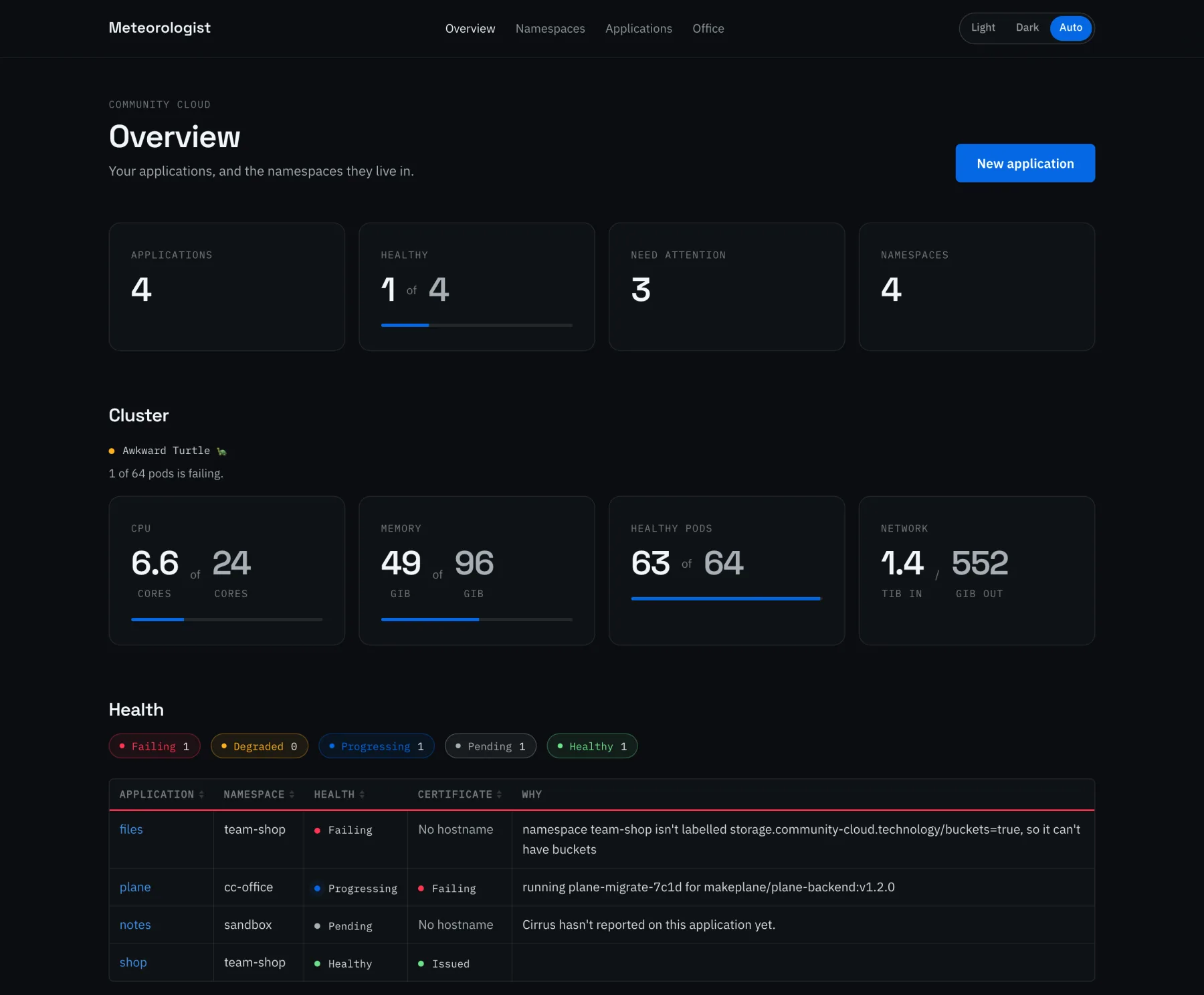
A screenshot of an app, in a window.
import { ScreenFrame } from "gui-mellow/ScreenFrame";A screenshot
The brand's name gives way to the address on narrow screens, and the logo stays.
meteorologist.example.org/apps/overview
 Community Cloud
Any element
Live components work as well as images.
CPU
12.4cores
of48.0cores
Memory
182GB
of512GB
Only a window
The address and brand are optional.

Source of these examples
import { Grid } from "gui-mellow/Grid";
import { ScreenFrame } from "gui-mellow/ScreenFrame";
import { Stat } from "gui-mellow/Stat";
import { Example } from "../lib/Example";
import { asset } from "../lib/asset";

const brand = (
  <>
    <img src={asset("/cloud-logo-color.png")} alt="" width={28} height={14} />
    <span>Community Cloud</span>
  </>
);

export default function ScreenFrameDemo() {
  return (
    <>
      <Example
        title="A screenshot"
        description="The brand's name gives way to the address on narrow screens, and the logo stays."
      >
        <ScreenFrame
          media={asset("/meteorologist-overview.webp")}
          alt="Meteorologist's overview: application counts, cluster usage, and the health of each application"
          host="meteorologist.example.org"
          path="/apps/overview"
          brand={brand}
          caption="Everything running on the cluster, on one page."
        />
      </Example>
      <Example title="Any element" description="Live components work as well as images.">
        <ScreenFrame
          media={
            <div style={{ padding: "var(--gm-space-5)" }}>
              <Grid min="185px" gap={4}>
                <Stat label="CPU" value={12.4} total={48} unit="cores" precision={1} />
                <Stat label="Memory" value={182} total={512} unit="GB" />
              </Grid>
            </div>
          }
          host="status.example.org"
        />
      </Example>
      <Example title="Only a window" description="The address and brand are optional.">
        <ScreenFrame media={asset("/sovereignty.jpg")} alt="A row of national flags against a blue sky" />
      </Example>
    </>
  );
}